


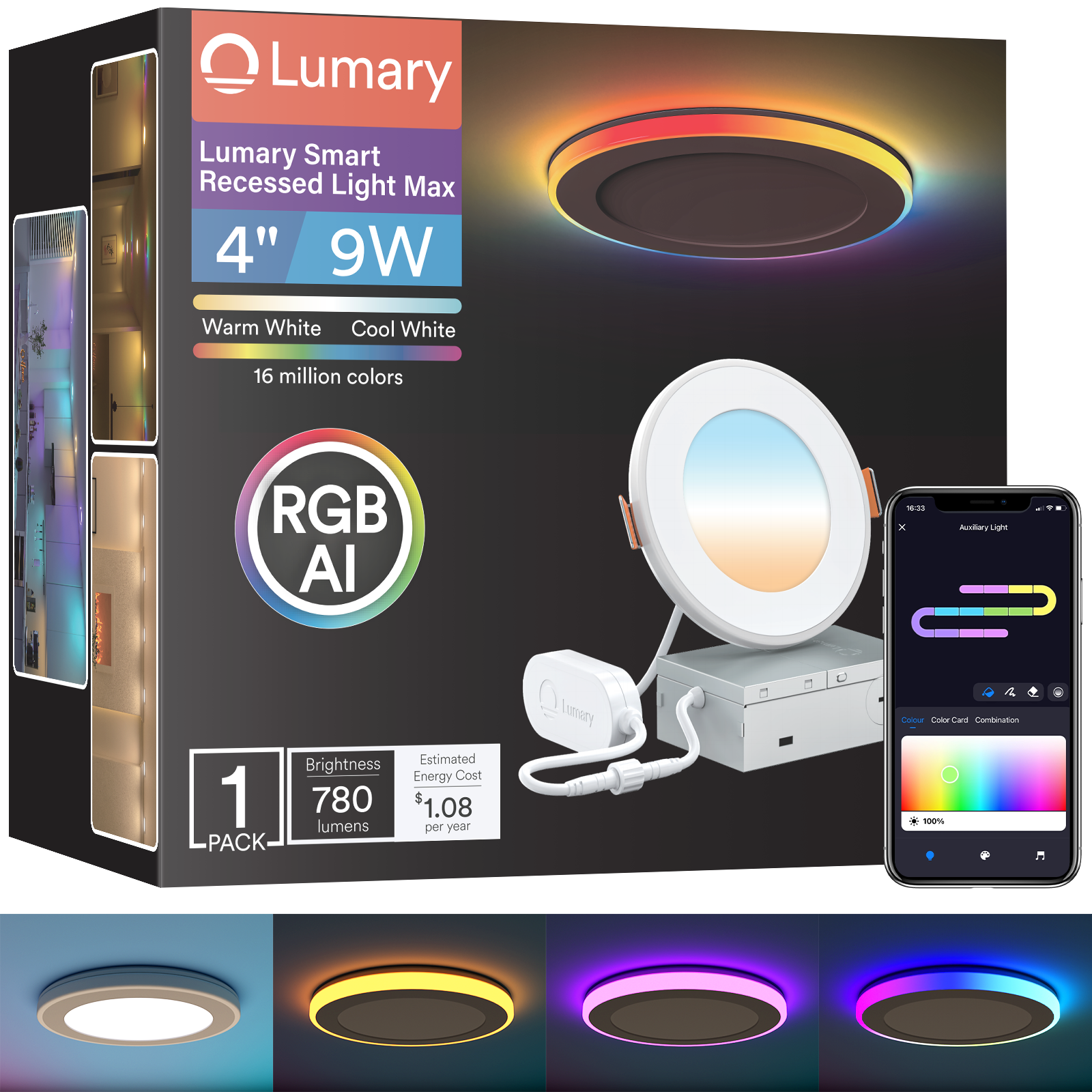
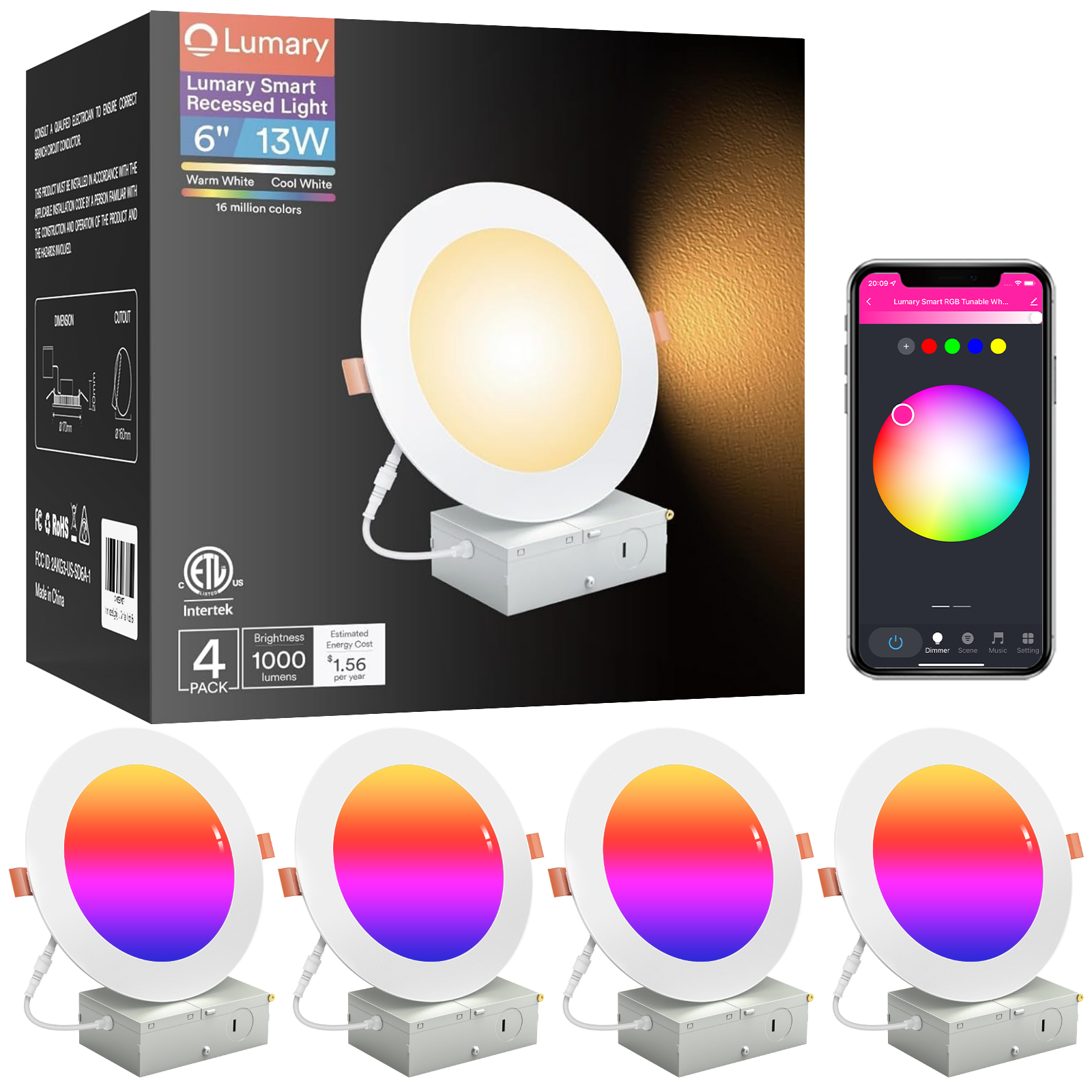
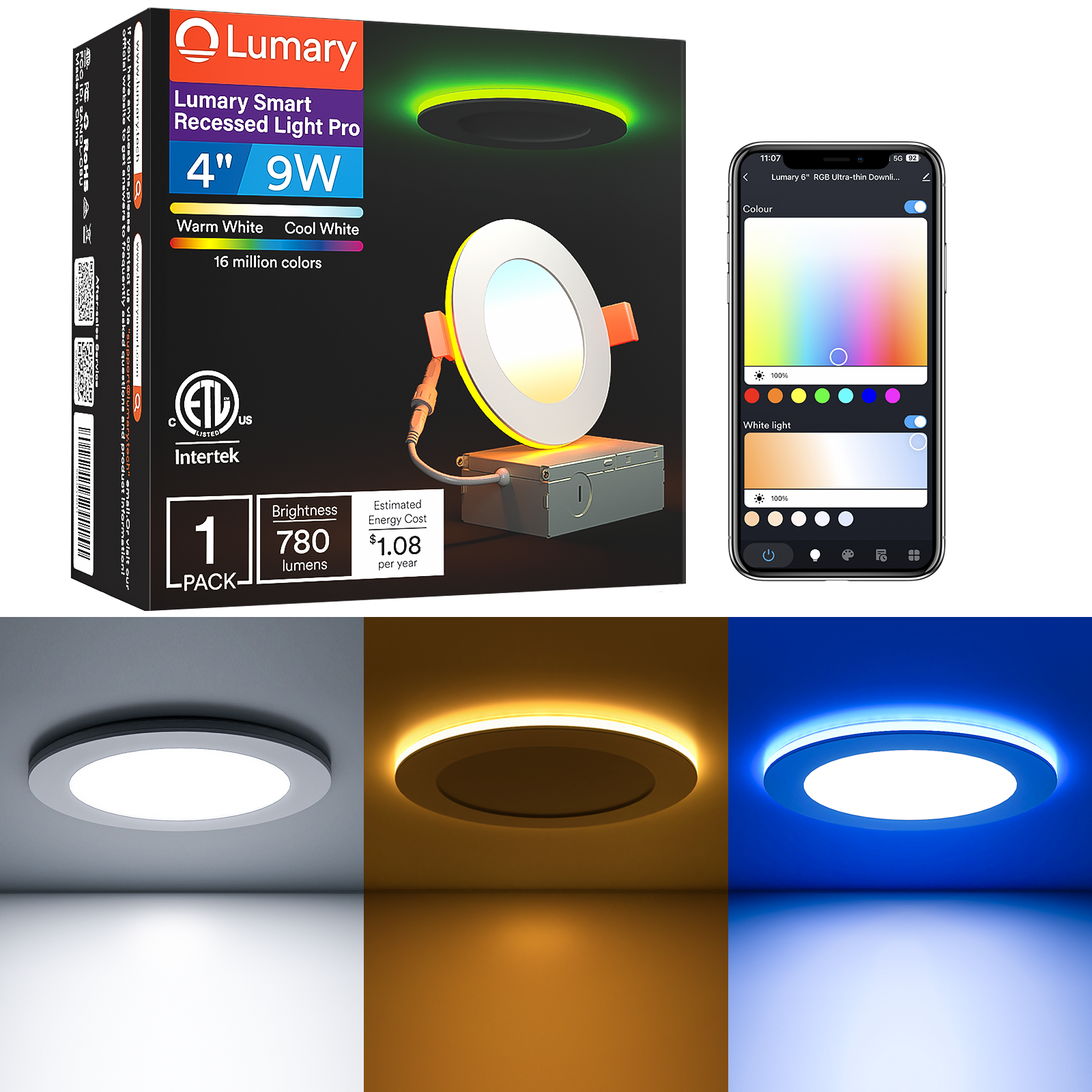
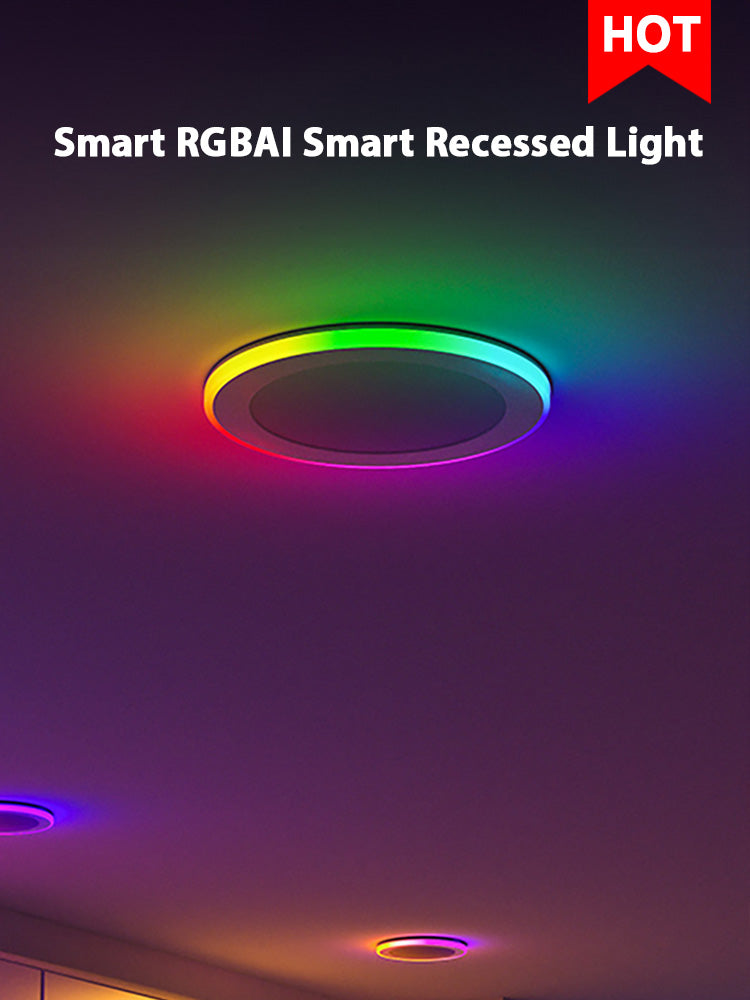


You can quickly connect your Lumary smart light to Alexa or Google. Smart lighting lets you use your voice to control lights. You can also pick special lighting modes fast. You can change your lights from any place. This guide shows you how to set up and use every feature.
Key Takeaways
-
You can connect your Lumary smart light to Alexa or Google Home. Just follow the easy setup steps. Then you can use your voice to control your lights.
-
Put your smart bulbs into rooms or groups in the app. This helps you control many lights at the same time. It makes your smart home better.
-
Use features like circadian rhythm support and custom lighting modes. These can help you feel better and get more done. Smart lighting can act like sunlight and make a nice mood.

Connect Lumary Smart Light to Alexa
The Lumary Smart Skylora Sky Light brings a new level of comfort and style to your home. This smart light offers a 24-hour natural light simulation, which means your room can follow the sun’s cycle from sunrise to sunset. You get a wide color temperature range, from a cozy 1800K to a bright 12000K. The Skylora uses a special AI engine to adjust the lighting smoothly throughout the day. It also cares for your eyes with full-spectrum output and low blue light. You can create custom lighting scenes or set the mood with emotion modes. The Skylora even syncs with real sunrise and sunset times based on your location. If you want a smart home that feels natural and easy to control, this smart light is a perfect fit. You can control your lights with voice assistants, your phone, or a remote. It works well with other smart home devices and fits right into your daily routine.
Prepare Your Smart Light and Alexa
Before you start, make sure you have everything ready. Here’s what you need to do to pair smart lights with Alexa:
-
Install your Lumary smart light bulb and turn it on.
-
Connect the bulb to your Wi-Fi using the Lumary app. Remember, the Skylora supports only 2.4GHz Wi-Fi.
-
Open the Alexa app on your phone.
-
Tap the menu and go to 'Skills & Games'.
-
Search for the Lumary skill and enable it.
-
Sign in with your Lumary account.
-
Ask Alexa to discover new devices.
-
Add the bulb to Alexa and set it up.
-
You can assign the bulb to a room or group if you want.
-
Repeat these steps for any other smart bulbs you want to connect.
Tip: Keep your router close to your smart light bulb during setup. This helps avoid connectivity issues.
Here’s a quick look at common issues and solutions:
|
Issue Type |
Description |
|---|---|
|
Connectivity issues |
Smart LED lights may fail to connect to Wi-Fi due to distance from the router or interference. |
|
Light performance problems |
Flickering or dim lights may indicate power supply or wiring issues. |
|
Solutions for connectivity |
Move the router closer, use a Wi-Fi extender, or change the Wi-Fi channel. |
Alexa App Setup Steps
You can connect a smart light bulb to Alexa in just a few steps:
-
Download the Alexa app if you haven’t already.
-
Open the app and tap the 'Devices' tab.
-
Tap 'Add Device'.
-
Select 'Light' and choose 'Lumary' as the brand.
-
Follow the prompts to link your Lumary account.
-
Once linked, Alexa will help you connect light bulbs and finish the setup.
Note: Make sure your smart light is already paired in the Lumary app before linking it to Alexa.
Add and Discover Smart Light
Alexa makes it easy to find and add your new smart bulbs:
-
After linking your Lumary account, ask Alexa to “discover devices.”
-
Alexa will search for any new smart bulbs in your home.
-
When your bulb appears, tap its name and select 'Setup Device'.
-
You can now control your lights with Alexa.
If Alexa doesn’t find your smart light, check your Wi-Fi connection and make sure the bulb is powered on.
Assign to Rooms and Groups
Organizing your bulbs in the Alexa app helps you control your lights more easily. Here’s how you can do it:
-
Group your lights by room, like “Living Room” or “Bedroom.”
-
Create groups for special purposes, such as “Movie Night” or “Reading.”
-
Assign each bulb to a specific room for quick voice control.
Grouping your smart bulbs gives you several benefits:
-
Seamless integration with other smart home devices.
-
Easy voice control for everyone in your home.
-
The ability to set scenes, like dimming all the lights for a cozy evening.
Voice Control and Features
Once you finish setup, you can control your lights with simple voice commands. Try these examples:
-
“Alexa, turn on the living room lights.”
-
“Alexa, set the bedroom lights to blue.”
-
“Alexa, dim the kitchen lights to 50%.”
You can also use Alexa to activate Lumary’s special features. The Skylora supports circadian rhythm simulation, so you can say, “Alexa, set the lights to daylight mode,” and your room will mimic natural sunlight. This helps your body’s internal clock and can boost your mood and productivity.
|
Feature |
Description |
|---|---|
|
Voice Control |
Control your lights using voice commands for convenience and accessibility. |
|
Circadian Rhythm Support |
Tunable white lighting adjusts color temperature to mimic natural daylight, improving sleep quality. |
|
Daylight Simulation |
Replicates natural sunlight to regulate your body’s internal clock, enhancing mood and productivity. |
Pro Tip: Use Alexa routines to automate your smart lighting. For example, set your lights to turn on gradually in the morning or dim at night.
Alexa Troubleshooting Tips
If you run into problems, try these steps:
-
Make sure your Lumary smart light is compatible with Alexa.
-
Check that your smart light is connected to a 2.4GHz Wi-Fi network.
-
Use the Lumary app to see if the bulb appears. If not, tap 'Add Device' and try again.
-
Confirm that your Lumary account is linked to Alexa in the app settings.
-
If your bulb does not respond, reset the app and try the setup again.
Here’s a table of common issues and solutions:
|
Issue |
Recommended Solution |
|---|---|
|
Lights not turning on |
Check all wires in the junction box and tighten them if loose. |
|
Connectivity issues |
Make sure the device is listed in the Lumary app, use 2.4GHz Wi-Fi, and update the app and firmware. |
|
LED dimming problems |
Use compatible dimmable LED lamps and avoid old dimmer switches. |
|
Voice control unresponsive |
Check Wi-Fi connection and ensure the app is updated; relink accounts if necessary. |
|
Wi-Fi connection issues |
Confirm the use of 2.4GHz band and ensure the phone and light are on the same network. Move the router closer if needed. |
If you still have trouble, check your Wi-Fi settings or contact Lumary support for help.
Now you’re ready to enjoy all the benefits of smart lighting with Alexa. You can control your lights, set the mood, and make your home smarter and more comfortable.

Connect Lumary Smart Light to Google Home
Prepare Your Smart Light and Google Home
You want your smart light to work smoothly with Google. Start by making sure your Lumary Smart Skylora Sky Light is installed and powered on. The bulb must connect to a 2.4GHz Wi-Fi network. The Lumary app helps you pair the bulb and check if it works. Open the app and look for your bulb in the device list. If you see it, you are ready for the next step.
You also need your Google Home device set up and connected to the same Wi-Fi network. Make sure your phone or tablet has the latest version of the Google Home app. This helps avoid problems during setup.
Tip: Place your router close to your smart light bulb during setup. This helps the bulb connect faster and keeps the signal strong.
Google Home App Setup Steps
You can connect a smart light bulb to Google Home in just a few steps. Here is how you do it:
-
Open the Lumary app on your phone or tablet. Make sure your lights are working.
-
Go to the settings menu and tap on Smart Integrations.
-
Choose Google Assistant from the list of voice assistants.
-
Log in to your Google account and allow the app to link your devices.
-
Give your bulbs easy-to-remember names. This makes voice commands simple.
The Google Home app setup for Lumary smart bulbs is a little different from other brands. You need to use the Lumary app first to link your bulbs. For other brands, you might only need to tap the '+' icon in the Google Home app and pick the brand.
Add and Discover Smart Light
Now you can add your smart light to the Google Home app. Follow these steps:
-
Open the Google Home app.
-
Tap the '+' icon at the top left.
-
Select 'Set up device' and then 'Works with Google'.
-
Search for 'Lumary' in the list of brands.
-
Log in with your Lumary account to link your bulbs.
-
The app will search for your bulbs and add them to your home.
If you want to connect light bulbs in different rooms, repeat these steps for each bulb. The Google Home app will show all your bulbs once they are connected.
Assign to Rooms and Groups
You can organize your bulbs in the Google Home app for easy control. Assign each bulb to a room, like "Bedroom" or "Kitchen." You can also create groups for special activities, such as "Dinner Time" or "Wake Up." This makes it simple to control all the lights in a room with one command.
Note: Grouping bulbs helps you control your smart home devices with fewer words. You can say, "Hey Google, turn off the bedroom lights," and all the bulbs in that room will respond.
Voice Control and Features
After setup, you can control your smart light with your voice. Try these commands:
-
"Hey Google, turn on the living room light."
-
"Hey Google, set the kitchen bulb to warm white."
-
"Hey Google, dim the bedroom light to 30%."
-
"Hey Google, change the dining room bulb to blue."
You can use Google Assistant to activate Lumary’s custom and emotion lighting modes. For example, you can say, "Hey Google, set the light to sunrise mode," and your bulb will slowly brighten to mimic the morning sun. You can also schedule your lights to turn on or off at certain times. The Lumary app lets you set timers and routines, so your lights match your daily schedule. This makes smart lighting feel natural and helps you wake up or wind down.
|
Feature |
What You Can Do |
|---|---|
|
Voice Control |
Use simple commands to turn bulbs on or off, change colors, or adjust brightness. |
|
Sunrise/Sunset Sync |
Program your bulbs to brighten in the morning or dim at night, following the real sun cycle. |
|
Custom & Emotion Modes |
Create moods for any moment, like relaxing, reading, or parties. |
|
Automation & Scheduling |
Set your lights to follow routines, timers, or special events. |
Google Home Troubleshooting Tips
Sometimes, you may have trouble when you try to connect smart bulbs to Google. Here are some steps you can follow if your bulbs do not show up:
-
Make sure your lights are powered on and in pairing mode.
-
Check that your Wi-Fi network is set to 2.4GHz. The Lumary app does not support 5G networks.
-
Restart the Google Home app and your phone or tablet.
-
If you still have problems, reset your bulbs and try to add them again.
Here is a table of common problems and solutions:
|
Issue Type |
Common Problems and Solutions |
|---|---|
|
Wi-Fi Issues |
Move your router closer, reduce interference, and restart the router if needed. |
|
Bluetooth Issues |
Make sure your devices support Bluetooth mesh. Reset any bulbs that do not respond. |
|
Software Glitches |
Uninstall and reinstall the app if it crashes. Clear the app’s cache for better performance. |
|
Firmware Updates |
Check for updates in the app and install them to keep your bulbs working well. |
|
Complex Issues |
If nothing works, ask for help from a professional or contact Lumary support. |
If you follow these steps, you can enjoy your smart light and all its features with Google Home. You can control your bulbs, set the mood, and make your home smarter every day.
You can now enjoy all the cool features of your Lumary Smart Skylora Sky Light with Alexa or Google Home. Try out routines, set custom scenes, and make your space unique. Need help? Support is ready. Got questions or tips? Drop a comment below! 😊

FAQ
How do you reset your Lumary Smart Skylora Sky Light?
Just turn the light off and on five times in a row. The light will blink. Now you can set it up again.
Can you use the Lumary Skylora without Wi-Fi?
Yes, you can use the included RF remote for basic controls. You do not need Wi-Fi for turning the light on or off.
What voice commands work with Lumary Skylora?
You can say things like, “Turn on the light,” “Set the light to blue,” or “Dim the light to 50%.” Try different commands for more features!

